
Table of Contents
- Key Highlights:
- Introduction
- How to End a Workout on Apple Watch
- Tips for Managing Workouts on Apple Watch
- Summary
Key Highlights:
- Ending a workout properly on an Apple Watch ensures accurate tracking of fitness data.
- Users can end workouts using the Workout app, an Action Button on the Apple Watch Ultra, or automatic workout detection.
- Useful features like End Workout Confirmation and Auto-Pause enhance user experience and workout management.
Introduction
Apple Watch has established itself as one of the premier fitness tracking devices, allowing users to seamlessly monitor their workouts and health metrics. However, many users may overlook the importance of properly ending a workout session. Finishing a workout correctly is crucial not only for logging accurate data but also for compiling a comprehensive overview of progress over time. This guide aims to provide a detailed look at how to effectively end a workout on your Apple Watch while maximizing its features for an enriched fitness journey.
How to End a Workout on Apple Watch
Knowing the different methods to end a workout on your Apple Watch can streamline your fitness routine and ensure you don’t miss out on tracking crucial data. Below, we delve into the primary methods of concluding your workout sessions.
1. Using the Workout App
The primary method for ending workouts involves the Workout app. Here’s a step-by-step breakdown:
-
Open the Workout App: Press the Digital Crown to access the app grid, then tap on the Workout app.
-
Swipe to Access Options: On the workout screen, swipe right to reveal different options.
-
Select End: Choose the ‘End’ option to stop your workout session.
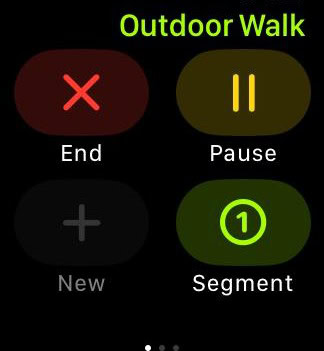
-
Save Your Data: After ending the session, a summary of your workout appears. Tap ‘Done’ to save your data and exit the app.
This straightforward process ensures that all your metrics, including heart rate and workout duration, are accurately logged, allowing for a precise representation of your fitness activities.
2. Using the Action Button (Apple Watch Ultra)
The Apple Watch Ultra introduces an Action Button that can be customized for various functions, including ending workouts. Here’s how to set it up:
-
Configure the Action Button: Navigate to Settings > Action Button, and select ‘End Workout’ from the options provided.
-
End Your Workout: During your workout, simply press the Action Button to instantly stop the session.
This feature is particularly useful for those who prefer minimal interaction with their watch interface, allowing for a quicker and more efficient way to conclude workouts.
3. Automatic Workout Detection
Apple Watch boasts a smart feature that can automatically detect when you stop exercising. Here’s how it works:
-
Inactivity Detection: The watch is designed to sense inactivity during your workout. When this occurs, it prompts you with a message asking if you would like to end the workout.
-
Confirm End Workout: Simply tap ‘End Workout’ to confirm and log the session, ensuring your data is captured accurately.
This automatic detection helps users who may occasionally forget to end their workouts, safeguarding against lost data.
Tips for Managing Workouts on Apple Watch
Maximizing the functionalities of your Apple Watch can significantly enhance your workout experience. Consider these tips for effective workout management:
-
Enable End Workout Confirmation: Located in Settings under Workout, this option prevents accidental ends to your sessions, ensuring that all data is properly tracked.
-
Utilize Auto-Pause: This feature automatically pauses your workout when you stop moving, which is especially handy during activities like running or cycling, allowing you to save battery life and avoid incorrect tracking during breaks.
-
Customize Workout Reminders: Adjust notifications for starting, resuming, and ending workouts tailored to your schedule. This personal touch can help keep you accountable and motivated.
-
Post-Workout Heart Rate Monitoring: You can tap the heart icon in the summary to keep tabs on your heart rate after each session, providing insight into cardiovascular performance and recovery.
Frequently Asked Questions
Can I end a workout without using the touchscreen?
Yes, if you have configured the Action Button to end workouts, you can press it during a session to stop the workout without any need for touchscreen interaction.
How do I rate my workout effort?
After ending a cardio workout, swipe right to the Rate Your Effort screen. Adjust the slider to reflect your perceived exertion and tap Done to save your input. This self-assessment can inform your training adjustments in the future.
Can I combine multiple workouts into one session?
Yes, it’s possible to combine workouts. While in your current workout, swipe right, tap ‘New,’ select your next activity, and repeat this process. When you finish, swipe right again, tap ‘End,’ and then confirm ‘End Workout’ to consolidate your efforts under a single entry.
How do I view my workout history?
To access your workout history, open the Fitness app on your iPhone, select Sessions, and choose the specific workout you wish to review. This will provide you with detailed metrics, including calorie burn, distance, and duration, enhancing your ability to track progress and set future goals.
Summary
Successfully managing and concluding workouts on your Apple Watch is crucial for obtaining accurate fitness data. Utilize the steps outlined above to efficiently end workouts, whether through the Workout app, Action Button on the Ultra, or automatic detection features.
- Tap ‘End’ in the Workout app by swiping right.
- Use the Action Button on the Apple Watch Ultra for quick ends.
- Rate your workout effort post-session to provide essential feedback.
- Combine workouts as necessary for comprehensive tracking.
- Review your workout history within the Fitness app for detailed insights.
- Customize workout notifications to better align with your fitness routine.
Understanding how to end workouts properly allows you to make the most of your Apple Watch’s powerful capabilities, giving you keen insights into your fitness journey.
FAQ
As you navigate your fitness regime with Apple Watch, you might have further questions. Here are some you might find helpful:
Can I adjust the type of workout I’m tracking?
Yes, you can select from a variety of workouts within the app. Just tap on ‘New Workout’ while tracking a session or choose a different workout type before starting a new session.
What should I do if my Apple Watch isn’t tracking workouts correctly?
If you notice discrepancies in tracking, ensure your watch is updated to the latest software, your settings are configured correctly, and that the watch fits snugly on your wrist.
Is it necessary to wear my Apple Watch during every workout?
While wearing the watch can provide valuable data insights, it is not mandatory for every workout. Some users prefer to track workouts manually or use other devices; however, leveraging the watch's capabilities can provide additional metrics and insights.
Through understanding the features available on your Apple Watch and utilizing them effectively, you can enhance your workout experience and achieve your fitness goals more efficiently.